Claude Code Browser Use: A Field Log From Two Weeks in the Loop (2026)
Claude Code can now drive a real browser: read the console, click through your app, fill forms, pull data. Two weeks of using it on live work, what it replaced, where it still hands the keyboard back, and the context-cost footgun nobody warns you about.
Updated on August 23, 2026
On this page
Quick Answer
Claude Code browser use lets the agent drive a real Chromium browser from your terminal or editor: it reads the console and DOM, clicks, types, fills forms, uploads files, extracts data, and records the session. You turn it on with the --chrome flag or by running /chrome and choosing "Enabled by default". It needs the Claude in Chrome extension (v1.0.36 or higher) and a direct Anthropic plan. It landed in the Week 28 build (July 6 to 10, 2026). In plan mode, read-only actions run silently and anything that changes page state asks first. The catch nobody flags: leaving it on by default loads the browser tools into every session and quietly eats context. After two weeks on live work, I run it per task, not always-on.

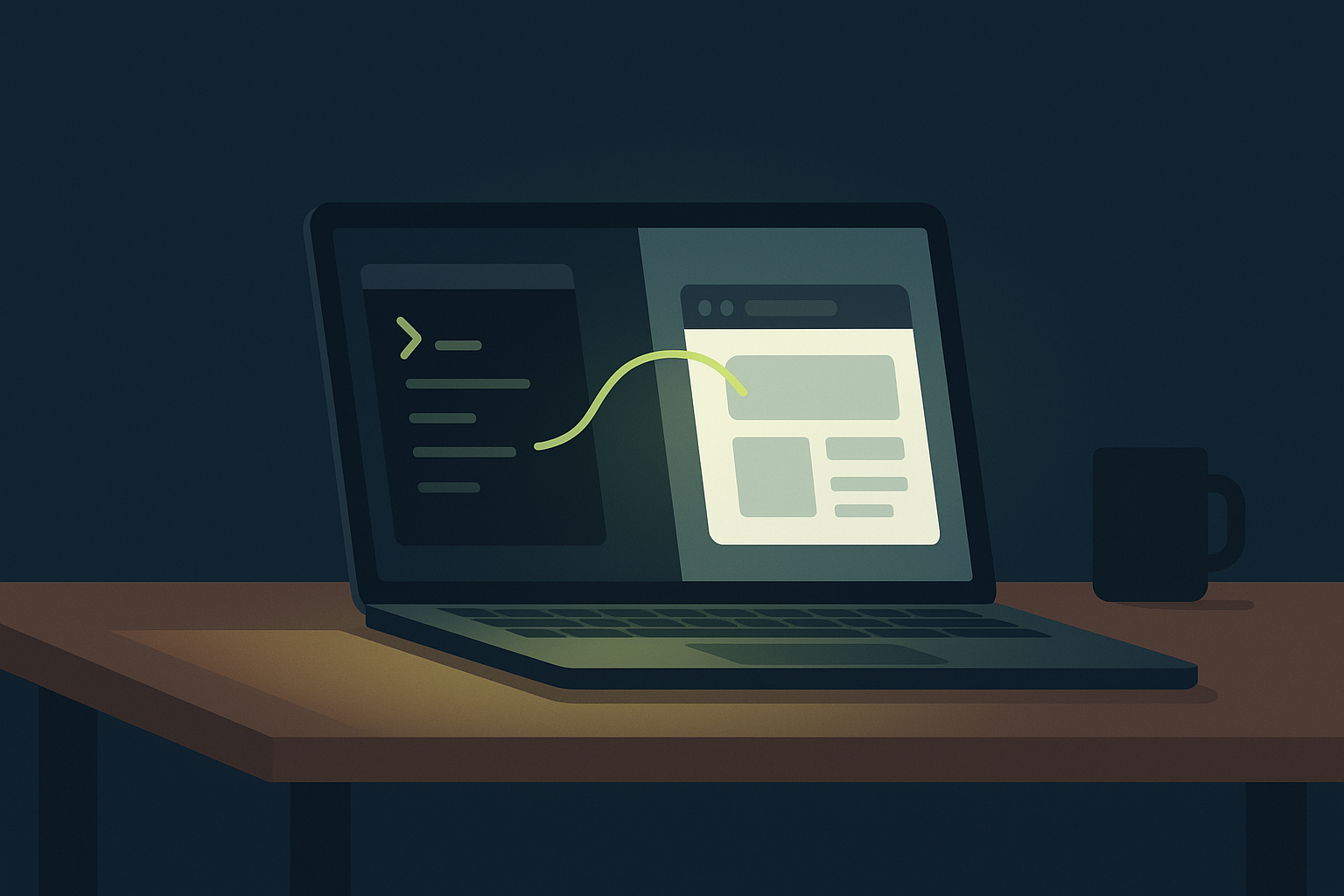
claude --chrome. This is what the two weeks after that looked like.
What it actually is
Claude Code connects to your Chrome browser through the Claude in Chrome extension and gets browser tools straight from the CLI or the VS Code extension. It opens new tabs for its tasks and shares your browser's login state, so it can reach anything you are already signed into. Actions happen in a visible window, in real time. When it hits a login page or a CAPTCHA, it stops and hands the keyboard back to you.
That last part matters more than the feature list. This is not a headless robot pretending to be you. It works in your window, in front of you, and it defers on the human-shaped walls.
It works with Chrome and Edge, plus other Chromium browsers (Brave, Arc, Vivaldi, Opera). It does not work inside WSL, and it is not available through third-party providers like Bedrock or Vertex. You need a direct Pro, Max, Team, or Enterprise plan.
Turning it on
Two ways.
# per session, one off
claude --chrome
The first launch shows a one-time dialog about how site permissions work. Press Enter. The first actual browser action asks permission to use the claude-in-chrome skill. Approve it once.
To skip the flag every time, run /chrome and pick "Enabled by default". Run /chrome any time to check status; it is working when the panel shows "Status: Enabled" and "Extension: Installed".
I ran it default-on for three days. Then I turned it back off. More on why below.
The loop that made it worth it
The debugging loop is the reason I keep it around. Instead of me being the copy-paste layer between the browser and the model, it reads the console itself.
Open localhost:3000, submit the login form with an invalid email,
and check the console for validation errors when it fails.
It navigates, does the thing, reads the console, and tells me which handler threw. Then it fixes the code that caused it, in the same turn. The round trips collapse into one.
Design verification is the other keeper. Build a component from a Figma frame, then: "open it at localhost:3000 and tell me where it drifts from the mock." It is not perfect at pixel judgement, but it catches the obvious misses (wrong spacing scale, a missing hover state) faster than I tab over to check.
Data extraction and form filling both work as advertised. It read a local CSV, walked an internal admin panel, and entered rows one by one. Tedious work I would have scripted, done conversationally.
What "read-only" means in plan mode
This is the detail I wish I had known on day one. In plan mode, browser calls that only read the page run without a prompt. Calls that change state ask first.
- Runs silently:
read_page,get_page_text,find, reading console or network messages, taking a screenshot. - Asks first: clicks, typing, navigation, tab management, recording a GIF.
There is a sharp edge here. As of v2.1.199, an otherwise read-only call that flips a state-changing flag also prompts. Saving a screenshot to disk with save_to_disk, or clearing the console reader, counts as a change. So "take a screenshot" is silent, but "take a screenshot and save it" is not. Once I understood that, plan mode stopped surprising me.
File uploads, with three fences
It can attach local files to upload fields, and this works in remote sessions too because Claude Code reads the file and sends the contents. Three limits bit me in order:
- Permissions. It can only upload a file it is allowed to read. If a
Readpermission rule denies the path, the upload is blocked too. - Size. Ten megabytes total per upload. My first attempt was a fat log bundle. It refused.
- Hard links. It refuses files with multiple hard links, which is normal inside
node_modulesand package stores. Copy the file out, upload the copy.
None of these are bugs. They are just undocumented in your head until you hit them.
Where it still hands the keyboard back
- Login walls and CAPTCHAs. By design. It pauses and waits for you.
- A JavaScript modal (
alert,confirm,prompt) freezes the page for it. The events stop arriving. You dismiss the dialog by hand, then tell it to continue. This ate ten confused minutes before I realized the page was blocked, not the model. - Long idle sessions. The extension's service worker goes to sleep and the connection drops. Symptom: browser tools just stop responding. Fix:
/chrome, then "Reconnect extension". I now do this reflexively after a coffee break.
The context cost nobody mentions
Here is the footgun. Enabling Chrome by default loads the browser tools into every session, and that increases context usage whether or not you touch the browser. On long coding sessions I could feel it: compaction hit sooner, and I was spending tokens on a toolset I was not using that hour.
The docs say this plainly, but it is buried under the setup steps, and the default-on toggle makes it easy to forget. My rule now: browser off by default, claude --chrome when the task is actually browser-shaped. If you want to know why session context is worth guarding at all, that is its own rabbit hole; the short version is that everything you load competes for the same window.
Does it replace a Playwright MCP setup?
For my day-to-day dev loop, mostly yes. The built-in browser shares my login state and lives in the same session as the code, so the debug-fix cycle is tighter than routing through a separate 
Two weeks in, the honest verdict: it removed a manual step I did not know was slowing me down, and it added two small rituals (reconnect after idle, keep it off by default). Net positive. Not magic, just one less context switch.
P.S. The first time it filled a form faster than I could read the fields, I felt useful and obsolete in the same second.
Sources
- Claude Code docs, Use Claude Code with Chrome (verified July 17, 2026): https://code.claude.com/docs/en/chrome
- Claude Code docs, What's new, Week 28 (July 6 to 10, 2026): https://code.claude.com/docs/en/whats-new
- Claude Code docs, permission modes (plan mode): https://code.claude.com/docs/en/permission-modes
- Playwright documentation: https://playwright.dev
Written by
M. PatelBackend dev. Writes when something breaks. Currently shipping a B2B agent product with one cofounder.
Frequently asked questions
How do I enable browser use in Claude Code?
Start Claude Code with the --chrome flag (claude --chrome) for a one-off session, or run /chrome and select "Enabled by default" to skip the flag every time. You need the Claude in Chrome extension version 1.0.36 or higher installed in a Chromium browser, and a direct Anthropic plan (Pro, Max, Team, or Enterprise). The first browser action asks permission to use the claude-in-chrome skill; approve it once.
What can Claude Code do in the browser?
It reads console errors and DOM state for live debugging, verifies a UI against a design, tests forms and user flows, interacts with apps you are logged into, extracts structured data to local files, uploads files to web forms, takes screenshots, and records interactions as GIFs. It runs in a visible browser window and pauses for you to handle logins or CAPTCHAs.
What does read-only mean for browser tools in plan mode?
In plan mode, read-only browser calls run without a permission prompt: read_page, get_page_text, find, reading console or network messages, and taking a screenshot. State-changing calls prompt first: clicks, typing, navigation, tab management, and recording a GIF. As of v2.1.199, a read-only call that sets a state-changing flag (such as save_to_disk on a screenshot, or clearing the console reader) also prompts for approval.
Why did the browser connection stop working mid-session?
The most common cause is the Chrome extension's service worker going idle during a long session, which drops the connection and stops browser tools from responding. Run /chrome and select "Reconnect extension". A JavaScript modal dialog (alert, confirm, or prompt) can also block the page; dismiss it manually, then tell Claude to continue.
Does leaving Chrome enabled by default slow Claude Code down?
It increases context usage. Enabling Chrome by default loads the browser tools into every session even when you are not browsing, which consumes context and can trigger compaction sooner on long coding sessions. If you notice higher context consumption, disable the default and use --chrome only when a task actually needs the browser.
Keep reading
The MCP Servers I Actually Keep Loaded in Claude Code (2026 Field Reference)
A working reference: the five MCP servers I keep loaded in Claude Code after a year of daily use, the ones I removed, why every server costs context-window tokens, and the exact scope config that keeps the list short.
Claude Code plan mode: when it earns its place (2026)
A field note on Claude Code plan mode after months of daily use: when it saves me, when I skip it, three failure modes the listicles miss, and the exact habit I built around it.
The Claude Code Statusline I Actually Read (and the Fields I Deleted)
A config field log: the exact Claude Code statusline I run in 2026, the four fields that earn their place, the ones I deleted, and why the bar sometimes shows up empty.